EXPOSE
The Expose feature enables the user to use SYNA as a gateway and expose selected data to an external cloud provider.
How-to expose data from the COLIGO App
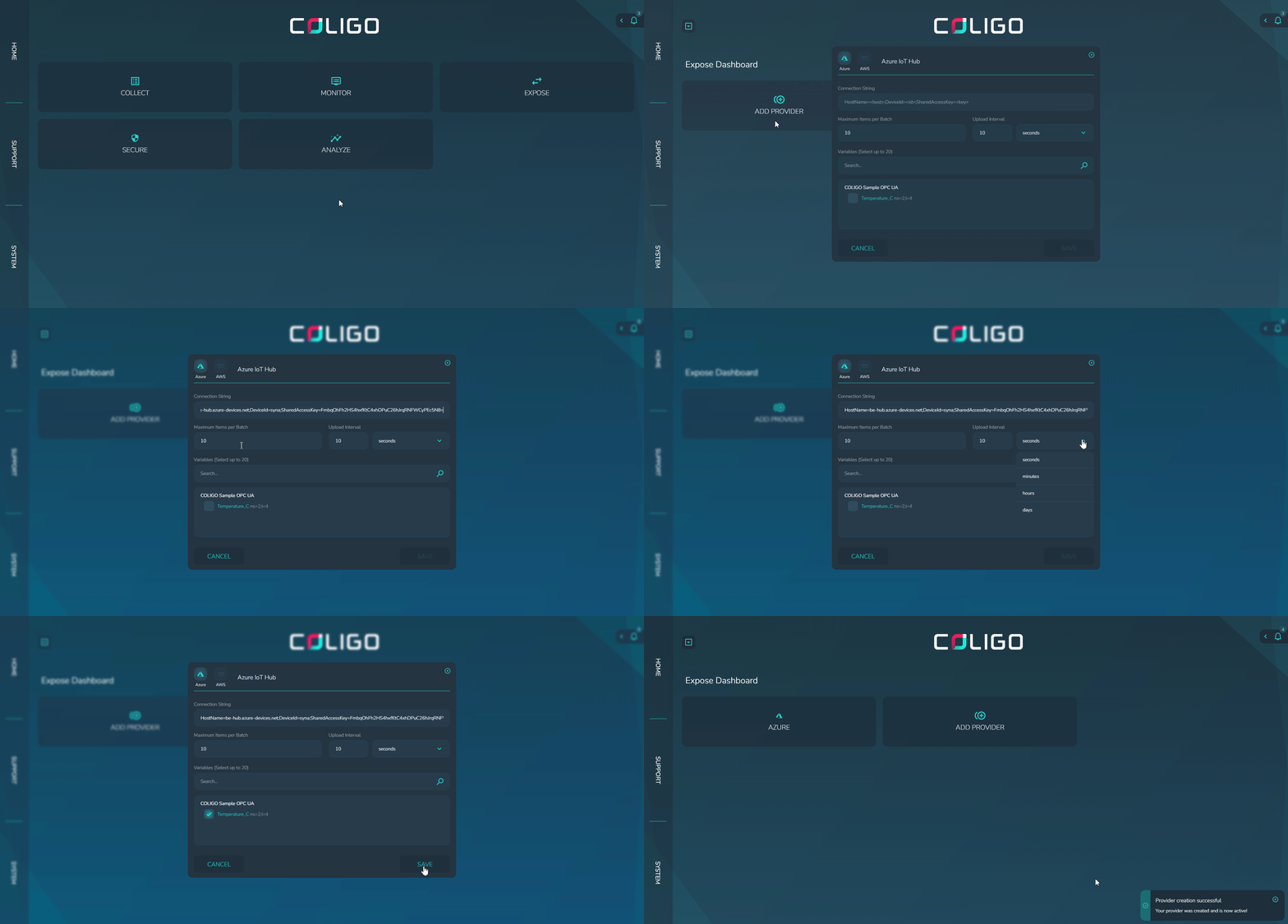
1. Add a New Provider
- From the main dashboard, click EXPOSE.
- Select ADD PROVIDER.
- Choose your provider (currently only Azure available).
2. Configure Provider Settings
Azure IoT Hub
-
Follow these instructions to create an IoT Hub on Azure.
-
Create an underlying device:
- Define the device ID
- Leave
IoT Edge Deviceunchecked - Choose
Symmetric keywith autogeneration of keys - Enable the device
-
Copy the primary connection string and head to the COLIGO App
-
Paste the Connection String for your device.
-
Set batching options:
- Maximum Items per Batch: Number of samples per upload.
- Upload Interval: Time between uploads.
-
Click SAVE.
3. Select Variables
- Use the search to find the variables.
- Select the variables you want to publish to the cloud.
- Confirm your selection.
4. Finalizing the Setup
✅ Your provider is now active, and selected variables will be sent to your cloud endpoint at the configured interval/batch size.
5. Updating Settings
You can update the batching settings and selected variables at any time by clicking on the Azure tile. Changes will apply automatically and affect future data uploads.
6. Troubleshooting
-
Provider creation failed:
- Check that the connection string is valid and belongs to an active device.
-
No data arriving in cloud:
- Confirm the provider exists in the app.
- Verify network connectivity from the SYNA device to the cloud endpoint (Internet connection and firewall settings).
- Reduce batch size/interval to test more frequent uploads.
-
Authentication issues (Azure):
- Regenerate device keys and update the connection string in the app.
- Ensure the Device is Enabled in IoT Hub.