CONNECT
After commissioning your SYNA device, the next step is to add a connection and configure the device settings.
This ensures SYNA can securely communicate with your application or controller.
How-to connect to OPC UA Server from COLIGO App
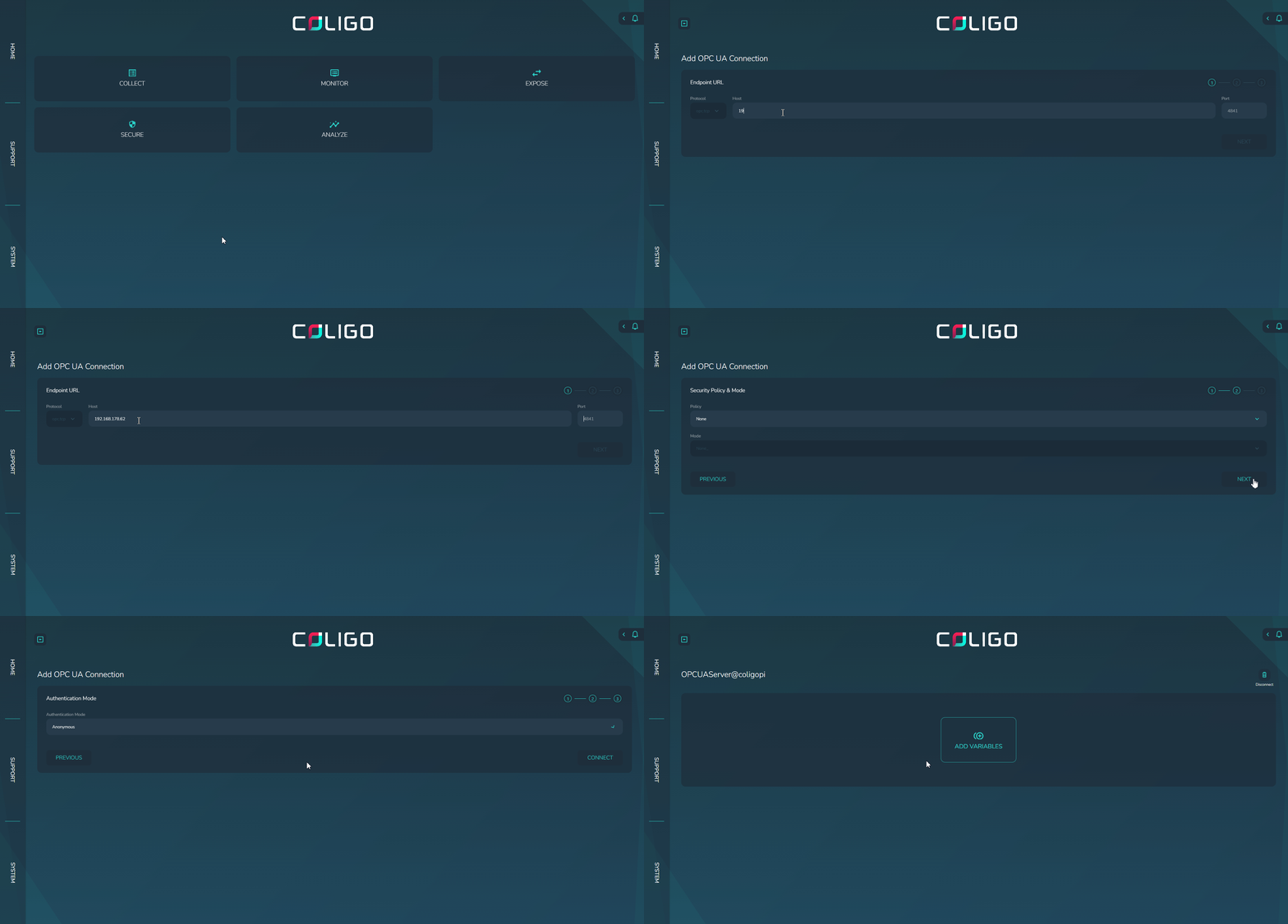
1. Add a New Connection
- From the main dashboard, click CONNECT.
- Select ADD CONNECTION.
2. Configure Connection Settings
- In the Endpoint URL field, fill/paste the OPC UA server address that you want to connect:
Example:116.203.140.101 - In the Port field, enter the port number of the OPC UA Server:
Example:4840(default OPC UA port). - Click NEXT.
- Choose the Security Policy & Mode that matches your OPC UA server settings.
- Click NEXT again.
- Select the Authentication Mode required by your OPC UA server.
- Click CONNECT to establish the link.
Collecting the OPC UA Server Variables
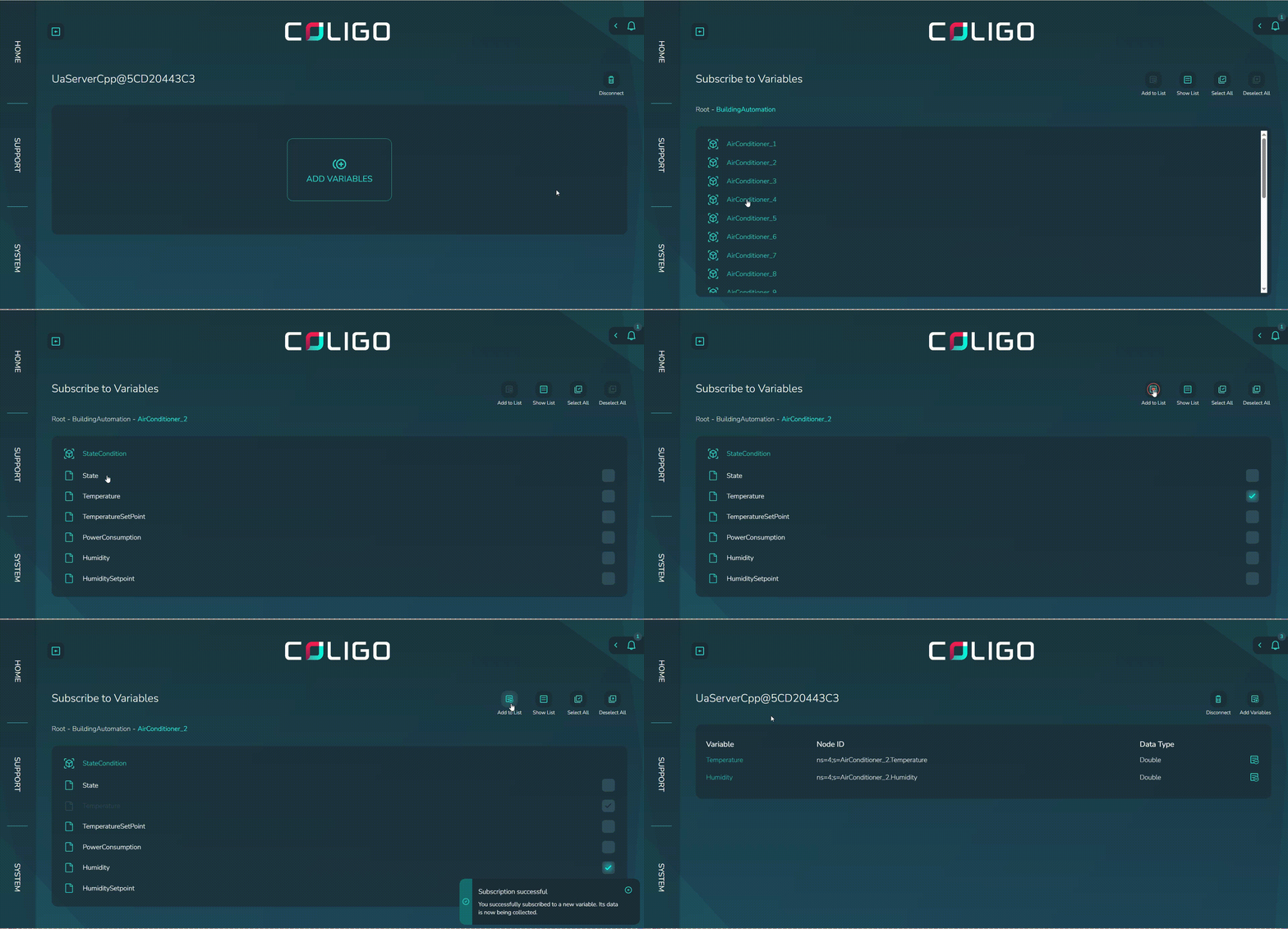
3. Add Variables
Once connected:
- Click ADD VARIABLES.
- Navigate through the address space to select the variables to be subscribed to:
- Select the variables you need (e.g.,
bSetSpeed,bAcceleration). - Confirm your selection.
4. Finalizing the Setup
✅ Your connection is now established, and variables are mapped.
You can begin monitoring or controlling values directly from the SYNA web interface.
5. Troubleshooting
-
Cannot connect to server:
- Check the IP address and port.
- Ensure the OPC UA server is running and reachable from the SYNA device (both connected to the same network).
-
Security/authentication fails:
- Make sure your chosen Security Policy and Authentication Mode match the server configuration.
-
Variables not visible:
- Confirm that the target application is running and exposing the desired variables in the OPC UA Server.
- Check if the user roles you have used to log in to the OPC UA Server provides you with the access to varaibles
- Refresh the variable tree and retry.